
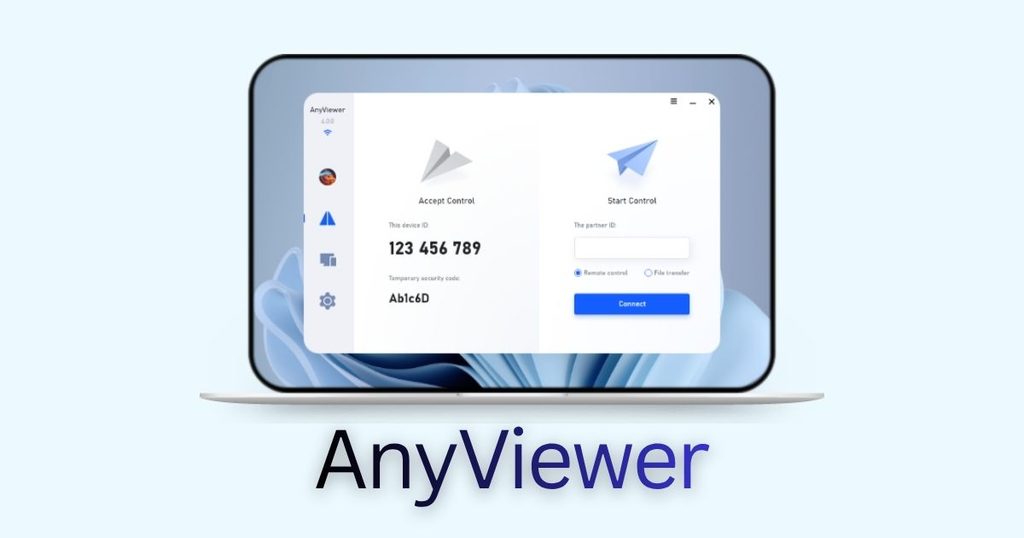
Remote work and multi-device management shouldn’t require an expensive IT setup. Whether you are providing remote IT support services for clients, troubleshooting a family member’s computer from across town, or accessing your work desktop while traveling, finding reliable free remote desktop software is essential for seamless connectivity.
This complete guide breaks down what remote access software is, key features to look for in top-tier apps for remote desktop, why AnyViewer is a top-recommended solution in 2026, and how to get connected step-by-step in just a few minutes.
What Is Free Remote Desktop Software & Why Do You Need It?
Free remote desktop software lets you securely access and control your computer from any phone, tablet, or secondary laptop over the internet, at zero cost. If you need to remotely control computer from another computer, these specialized apps for remote desktop establish a real-time link where your host PC screen appears directly on your local device, giving you full control to run apps, transfer files, or solve tech issues as if you were sitting right there.
Why It’s a Game-Changer:
- Your PC, Anywhere: Access your home or office desktop, along with all its heavy software and files, from anywhere in the world.
- Instant Tech Lifesaver: Jump onto a friend’s or client’s screen and fix software issues in seconds without leaving your couch.
- Seamless File Drops: Move heavy photos, videos, and project folders directly between devices without waiting on cloud uploads.
- Zero Cost: Enjoy high-level perks like unattended access and multi-monitor switching without monthly subscriptions.
Tools like AnyViewer make this setup effortless across Windows, macOS, iOS, and Android.
Recommended Free Remote Desktop Software Solution: AnyViewer
When choosing a trustworthy, fast, and feature-rich free remote desktop software, AnyViewer stands out as a top-tier recommendation for Windows, iOS, and Android users.
While many traditional tools restrict free users with sudden session time limits, commercial use warnings, or missing features, AnyViewer provides a generous, truly usable free plan built for both quick support sessions and daily remote work.
Why Choose AnyViewer?
- High Performance & Low Latency: Supports smooth frame-rate display streaming (up to 60 FPS / 4K resolution) for fluid typing, mouse movements, and application usage.
- Free Unattended Access: Connect to your remote home or office PC anytime, even when no one is physically present to accept the incoming connection.
- Enterprise-Grade Security: Built with End-to-End Encryption via 256-Bit Elliptic Curve Cryptography (ECC) algorithms and dual-authentication safety checks to prevent unauthorized access.
- Rich Free Features Included: Enjoy multi-monitor switching, high-speed built-in file transfer, session text chat, and instant resolution scaling without hidden paywalls.
Step-by-Step Guide: How to Set Up Remote Desktop Connections
Setting up remote access doesn’t require advanced networking skills, static IP setup, or complex router port-forwarding. Follow these basic steps to get connected.
Step 1: Set Up Host (Remote PC): Install AnyViewer on the PC you want to control, sign up, and log in to assign it to your account.
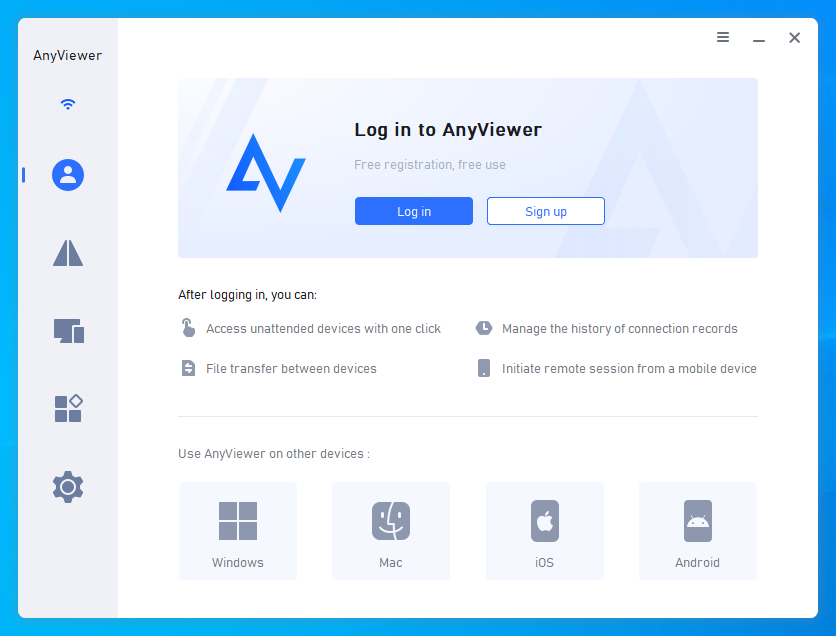
Step 2: Set Up Client (Local Device): Install AnyViewer on your laptop or phone and sign in with the same account.
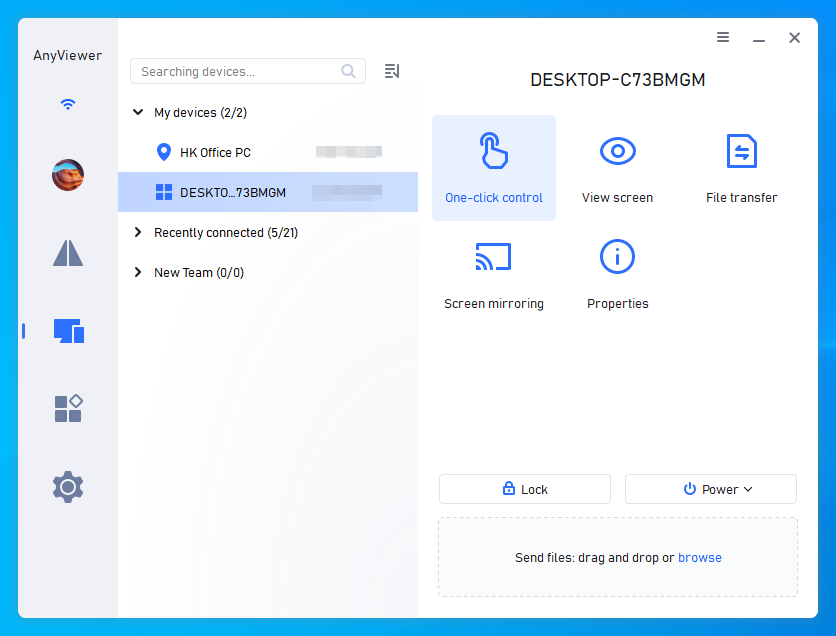
Step 3: Connect: Go to Device, select your host PC, and click One-click control.
Conclusion
Finding the right free remote desktop software doesn’t have to be complicated or expensive. With its low-latency performance, robust security, and generous free features like unattended access and file transfer, AnyViewer provides an effortless solution for all your remote access needs. Get started with your remote desktop software free download today and experience fast, secure, and flexible remote control from anywhere!
Frequently Asked Questions
Yes, as long as you choose software that utilizes industry-standard security protocols. AnyViewer employs 256-Bit ECC encryption and requires dual-authentication safety checks (account login and security codes) to prevent unauthorized access.
Yes. Feature-rich remote tools support “Unattended Access.” Once configured, you can log in, unlock, and manage the remote PC remotely without human intervention at the host end.
Yes. Modern remote solutions work across distinct Wi-Fi networks, cellular data (4G/5G), and complex routers automatically. You do not need to configure complex VPNs or open router ports.
Yes. AnyViewer includes built-in file transfer functions, allowing high-speed, direct file moving between local and host devices during or outside of active screen sessions.
Yes. If your host computer uses multiple physical displays, you can switch between screens or display all monitors simultaneously on your local controller window.