
You may already copy some files to a USB drive. This works for photos, videos, and work files. But it may not save Windows, your apps, or your PC settings.
Backup software gives you more choice. It lets you back up a few specific folders or clone your entire system. You can also schedule backups to run automatically, so you never have to kick off a task manually again.
Before you choose a tool, think about what you want to save. You should also decide where the backup will be kept.
What Should You Back Up?
Not all data needs the same type of backup. A few work folders are easy to copy. A full Windows system needs a more complete backup.
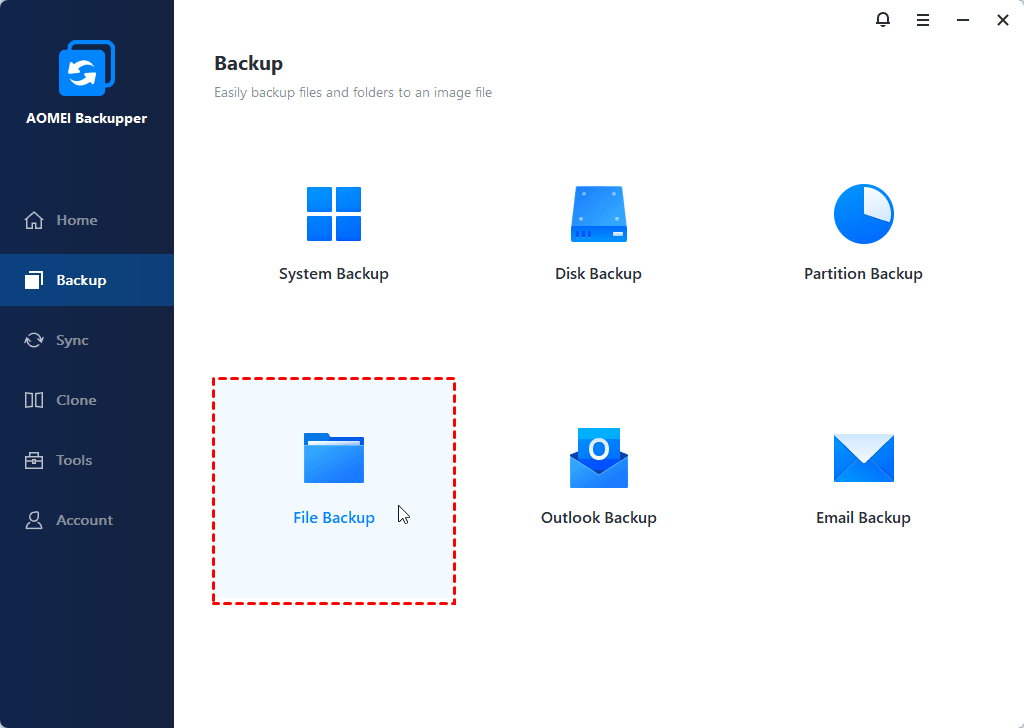
- File backup: Backs up specific files and folders. Great for everyday stuff like photos, videos, or work docs, and takes way less time than a full system image.
- System backup: Saves Windows and its core operating files, plus your installed apps and settings. This is your safety net for when a serious issue requires a full PC restoration.
- Disk backup: Makes a mirror image of a whole drive, covering all partitions. Ideal if you need a perfect, complete copy of a hard drive or SSD.
- Partition backup: This saves one part of a disk. It is a good fit when your important data is kept on a separate partition.
Your Windows version does not change this basic choice. For example, a windows 11 backup could mean saving a few folders or creating a full system image. The right option depends on what you may need to restore.
If you are not sure, start with the files you cannot replace. Then think about how much time it would take to install Windows and your apps again. This can help you decide if you also need a system backup.
What to Look for in Backup Software
A backup tool should make essential choices easy to find. You should be able to clearly see what will be saved, where the backup will go, and when the task will run.
AOMEI Backupper Standard is completely free backup software for Windows. You can back up files, your OS, entire disks, or single partitions. Plus, it supports scheduled backups and incremental copies to save you time and storage space.
| Feature | Why it matters |
|---|---|
| Multiple backup types | Back up files, partition, OS, or the whole disk. |
| Schedule settings | Set up how often you want it to run, such as daily, weekly, or monthly. |
| Incremental backup | Save only new or changed data to significantly reduce backup time and space |
| Flexible destination | Save backup to external drive, USB drive network share, NAS, etc. |
| Task management | You can check when a backup last ran, delete, restore, and more. |
You can only create incremental backups after a full backup. It only saves data that has changed and can cut the time and space used by later backups.
Clear restore tools also matter. A backup is only useful when you can find it and bring the data back.
Choose Where to Save Your Backup
Do not keep the only backup on the same disk as the source files. If that disk has a problem, you could lose both copies.
External or USB drive: This is a simple choice for most PCs. External drives often have enough space for system and disk backups while USB drives are suitable for file backup. Unplug the drive after the task when you do not need it.
Network share: Save the backup to another computer or device on your local network. Just make sure you can actually open that folder before you start the task.
NAS: A network-attached storage device can hold backups from multiple PCs. Just remember to have it powered on and connected when the scheduled task runs.
Check the amount of data you plan to backup. The destination needs room for the first full backup and later backup files.
Very important files should have more than one backup copy. Keep the copies in different safe places when possible.
How to Create a Windows Backup
Connect your external drive before you begin if you plan to use one. Make sure Windows can see it. You should also check that it has enough free space.
Step 1. Open AOMEI Backupper Standard and select Backup from the left menu. Then, choose File Backup, System Backup, etc., based on what you want to protect. Here take File Backup as an example.
Step 2. Click Select Source > This PC/NAS/Network Share to pick the items you want, or skip browsing and paste the path directly. Then, click the PC icon to select a destination. You can choose an existing location or a new one.
Step 3. If you want the task to run on its own, open Schedule Backup. Pick a daily, weekly, or monthly plan, then hit Start Backup. Wait until the first full backup finishes.
Summary
The right backup software should fit what you want to save. Use a file backup for chosen folders. Use a system backup when you also want to protect Windows. Disk and partition backups can help with larger jobs.
AOMEI Backupper Standard brings these choices into one tool. You can choose the data, save place, and backup time. Create the first task, check the result, and keep the backup away from the original files.