
As two of the world’s leading cloud storage services, both Google Drive and OneDrive provide users with excellent file management and real-time collaboration. However, they are built around fundamentally different ecosystems. Google Drive, serving as the connective hub for Google Workspace, comes with native integration with Google Docs, Sheets, and Slides.
OneDrive, as the underlying storage backbone of Microsoft 365, is designed for deep desktop OS integration and enterprise productivity. Besides, it is embedded directly into Windows File Explorer, which means you can manage OneDrive like managing a local drive partition.
When Need to Transfer Google Drive to OneDrive?
Migrating files from Google Drive to OneDrive often comes down to changes in your workflow, software preferences, or storage needs.
1. Deep Windows 11 / 10 Integration
OneDrive operates directly inside Windows File Explorer, allowing you to browse, edit, and offload files using Files On-Demand without using local SSD storage.
2. Graduation or Academic Account Expiration
Many high schools, colleges, and universities employ Google Workspace for Education accounts with generous storage allowances. Upon graduation, school IT departments typically disable or delete student Google accounts after a grace period. Transferring your academic research, personal projects, and course archives to a personal OneDrive account ensures you retain permanent access to your work.
3. Consolidating a Fragmented Cloud Footprint
Over time, users accumulate files across multiple free tiers (e.g., 15 GB on Google Drive, 5 GB on OneDrive, 2 GB on Dropbox). Having different types of files scattered across separate cloud platforms makes locating target files difficult. Moving all of them into OneDrive establishes a single, searchable digital repository for all your files.
Best Way to Transfer Google Drive to OneDrive
When faced with migrating data between two major cloud providers, most users initially rely on traditional methods: download data from the source cloud to the local disk, then upload it to the target cloud from the local storage. That makes sense when you just transfer a quite small amount of data. If you need to move a large amount of files, for example, 200GB, you have to ensure the local disk has 200GB of free space, or the process will fail.
Moreover, large batch uploads using web browsers are notoriously fragile. A brief Wi-Fi hiccup can interrupt an upload session, leaving you guessing which files transferred successfully and which ones failed.
So, to avoid all those limitations or potential headaches, it is advised to take advantage of a professional cloud file transfer tool. Among all available options, MultCloud has proven to be a nice choice since it supports nearly 40 cloud drives, including iCloud Drive, iCloud Photos, SharePoint, etc. It can perform a direct cloud-to-cloud migration without going through local device storage.
Instead of downloading files to your computer and re-uploading them over home internet, MultCloud creates a secure, direct server-side bridge between Google Drive and OneDrive. By offloading the entire transfer to high-speed cloud infrastructure, your migration happens behind the scenes with maximum efficiency and zero impact on your device’s performance.
1. Create Your Account
Visit the MultCloud website and sign up for a free account using your email address or third-party single sign-on.
2. Add Google Drive and OneDrive to MultCloud
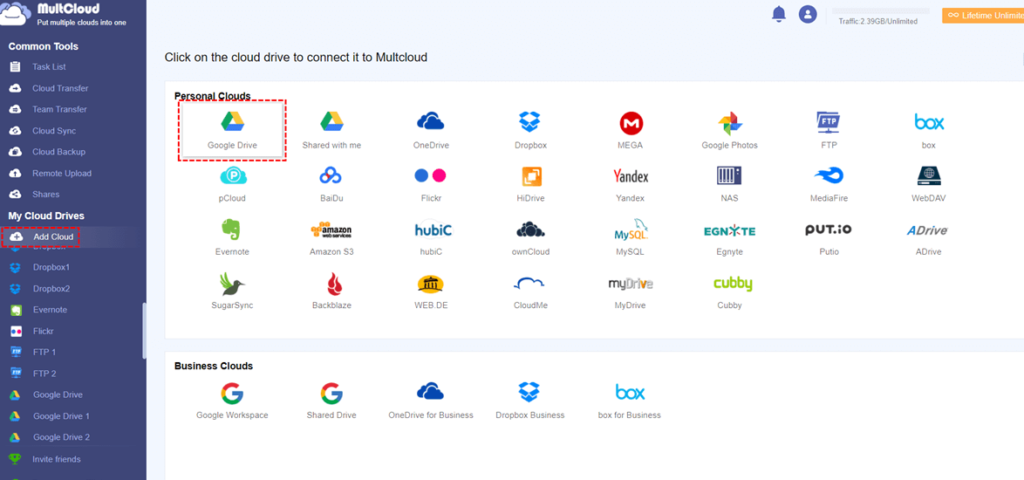
Click “Add Clouds and Emails” on the left menu. Select Google Drive and follow the authorization prompt to link your account. Click “Add Clouds and Emails” again, select OneDrive (or OneDrive for Business), and grant permissions.
3. Configure the Cloud Transfer Task
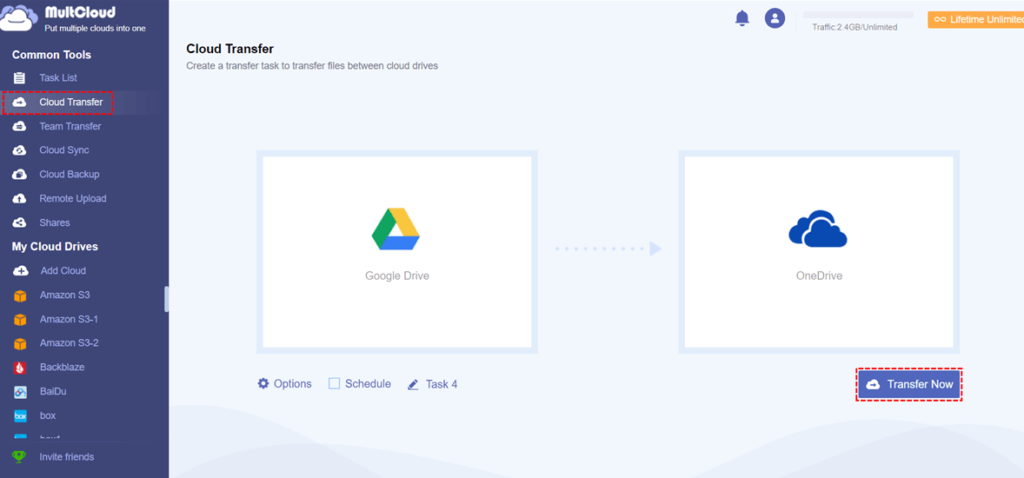
Navigate to the “Cloud Transfer” tab from the sidebar. Click the left box to select Google Drive (or specific folders or files within it) as the source. Click the right box to set OneDrive (or specific folders within it) as the target destination.
Step 4. (Optional) Make Additional Smart Settings
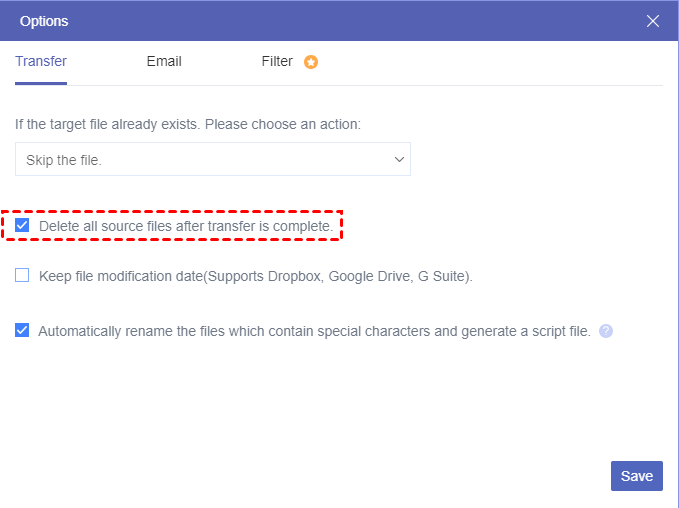
Click “Options” at the bottom to set custom extension filters, or click “Schedule” to automate recurring transfers based on daily, weekly or monthly.
Step 5. Execute the Migration
Click “Transfer Now”. MultCloud will handle the transfer on its high-speed servers. You can monitor progress under the “Task List” tab or close your browser and let it finish in the background.
Core Features of Using MultCloud for Google Drive to OneDrive Migration
1. 0 Local Storage Required
Data moves directly from Google Drive to OneDrive through MultCloud’s dedicated enterprise servers. Your local hard drive space remains completely untouched.
2. Offline Execution
Once you configure and initiate a transfer task, you can close your web browser or completely shut down your computer. MultCloud will transfer Google Drive to OneDrive in the background and send an email notification if you have chosen it in the task once the migration is complete.
3. File Filtering and Custom Options
MultCloud allows you to select specific folders or files to transfer, not all files at once. Furthermore, you can apply file-extension filters to bypass temporary files, logs, or unwanted formats, or include only what you need.
4. Scheduled and Automated Transfer Routines
If you need to transfer files across cloud platforms frequently, you can set up automated execution schedules—daily, weekly, or monthly.
Summary
Compared to traditional cloud-to-cloud migration methods, MultCloud saves much time and effort by eliminating the need to manually download, unzip, and re-upload your files from one cloud to another. Furthermore, with full support for over 30 leading cloud storage providers, MultCloud allows you to effortlessly transfer files not only between Google Drive and OneDrive, but across 30 different cloud platforms as well.