
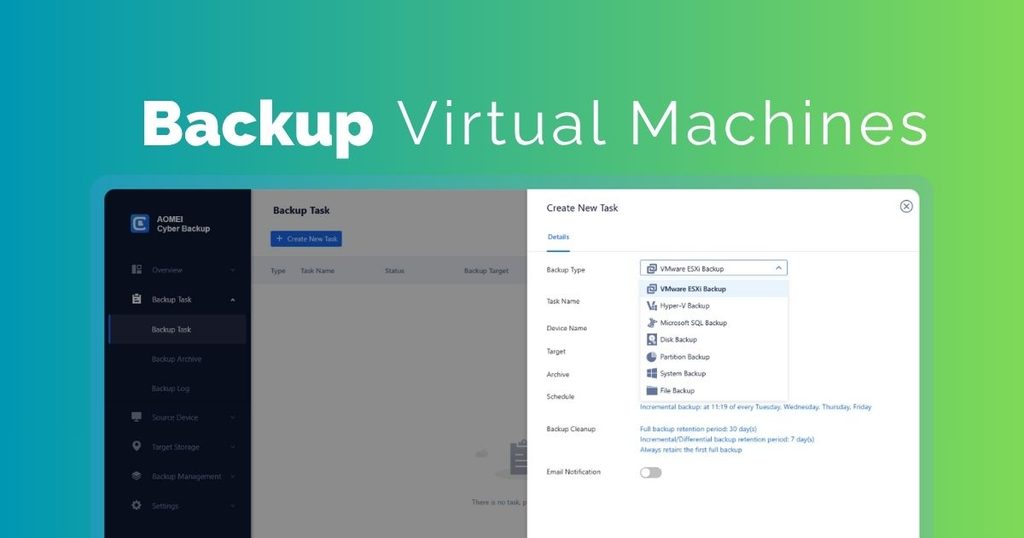
Your VMware environment is the engine of your business. How fast can you go back up if your engine fails? Relying entirely on traditional backup agents or array-based snapshots frequently results in delayed recoveries and data loss. This article explores the best VMware backup software to help you reduce storage costs and ensure business continuity.
What to Look for in VMware Backup Software?
Choosing the appropriate VMware backup software is critical for safeguarding virtual machines (VMs) and keeping your organization operational when unforeseen difficulties arise. A good solution should do more than simply create backups. It should make backup management easy while offering dependable recovery when you need it most.
The following are the major elements to consider while evaluating VMware backup software:
VMware Compatibility
First, ensure that the backup software is compatible with your VMware setup and the versions of VMware products that you use. It should be capable of backing up virtual machines effectively without requiring complex setups or significant changes to your existing infrastructure.
Full VM and Flexible Backup Options
Look for software that provides many backup kinds, such as full VM, incremental, and differential backups. Flexible choices allow you to strike a balance between backup speed, storage capacity, and recovery needs. File-level backup is also beneficial when you simply need to restore individual files rather than the complete virtual system.
Centralized Backup Management
Managing multiple VMs individually can quickly become time-consuming. VMware backup software with centralized administration allows you to manage backup jobs, scheduling, storage locations, and recovery activities from a single interface. This is especially useful for firms that have several VMware hosts or a big number of virtual machines.
Automated Backup Scheduling
Manual backups are easy to overlook, thus scheduling is an important feature. Choose a system that allows you to configure automated backup jobs according to your desired timetable. Options such as daily, weekly, or monthly backups can help ensure that important VM data is protected consistently.
Fast and Reliable Recovery
A backup is only beneficial if it allows you to restore your data in the event that something goes wrong. Check to see if the program provides flexible recovery choices, such as restoring an whole virtual machine, recovering particular files, or restoring to a new hardware or location. Faster recovery can also assist to decrease downtime following a system breakdown.
Backup Storage and Retention
Consider where the program lets you keep VMware backups. Local disks, network-attached storage, external drives, and cloud storage offer varying levels of convenience and security. It’s also worth noting whether the program has retention policies, which allow older backups to be managed automatically without taking up needless storage space.
I examined various popular VMware backup software on the market and discovered that AOMEI Cyber Backup is a dependable option for enterprises who want easy and centralized VM protection. It supports VMware and Hyper-V VM backup and allows you to create automated backup tasks for multiple VMs from a centralized web console.
How to Back Up VMware Virtual Machines with AOMEI Cyber Backup
Follow the steps below to create a VMware VM backup task with AOMEI Cyber Backup:
Step 1. Sign in to AOMEI Cyber Backup
1. Launch AOMEI Cyber Backup to access its management interface from your web browser.
2. Sign in with your program account or Windows account.
Step 2. Add the VMware environment
1. From the central console, click Source Device > VMware EXSi > Add VMware EXSi.
2. Enter the required connection information to add your VMware ESXi host or vCenter Server.
Step 3. Create a new backup task
1. On the left menu bar, click Task > Backup > Create New Task.
2. Select VMware ESXi Backup as the backup type.
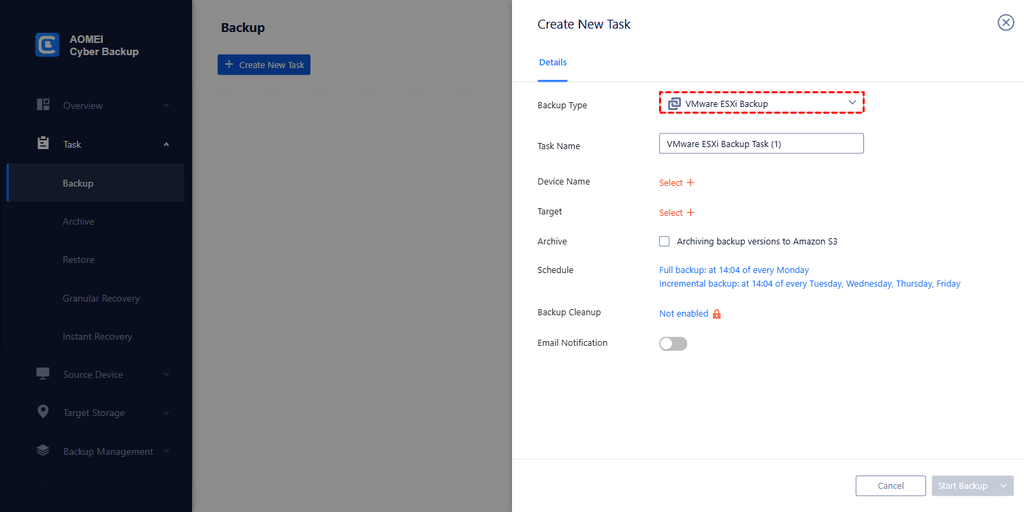
3. Change the Task Name or leave it as default.
4. In the Device Name field, click Select + to select a host and single or multiple VMs you want to backup.
5. In the Target field, click Select + to add local or network storage.
6. Set the Schedule and Backup Cleanup options as needed.
7. Click Start Backup to create the task and initiate the backup.
Final Words
Choosing the appropriate VMware backup software is critical for safeguarding virtual machines and reducing downtime due to unforeseen failures or data loss. A dependable solution should provide VMware compatibility, automatic scheduling, centralized management, customizable backup choices, safe storage, and simple recovery. AOMEI Cyber Backup brings these features together in a user-friendly platform, allowing businesses to centrally back up and manage VMware virtual machines with less effort.